Running into issues connecting WooCommerce to Shippo? Here's a rundown of the most common causes and how to fix them.
| Note: If your orders aren't syncing between WooCommerce and Shippo, start by disabling any new plugins you've recently enabled. We've seen cases where an improperly configured plugin caused syncing issues. Unfortunately, the fix in these cases is simply disabling that plugin. |
Troubleshooting checklist
- Verify your store URL is the base URL of your store. It shouldn't include extra paths like /admin, and shouldn't be misspelled. Confirm you're using the right http vs. https for your site.
- Your site must be live to connect properly.
- Use the latest WooCommerce plugin version — version 2.6 or higher is required.
- Verify your credentials. Occasionally the setup screen accepts incorrect credentials, but order sync silently fails with no error shown.
- Check the account role. The account connecting to Shippo needs the “Administrator” role.
- Check the account permissions. The account connecting to Shippo needs “Read/Write” permission.
- Getting 404 or 403 errors? These usually point to a permissions or routing issue. For 404 errors, check your .htaccess file to confirm your WooCommerce installation is reachable at the URL you gave Shippo. For 403 errors, check your server's file permissions to make sure they're accessible via the web.
- Enable the REST API in your WooCommerce plugin (see below).
Enable the REST API
WooCommerce plugin version 3.6.4 and later
The REST API lives under Advanced Settings.
- From your WordPress Admin page, click WooCommerce, then Settings in the left navigation.
- Click the Advanced tab, then click Legacy API.
- Make sure the box for “Enable the legacy REST API” is checked.
Older versions of the WooCommerce plugin
The REST API lives under the API tab.
- From your WordPress Admin page, click WooCommerce, then Settings in the left navigation.
- Click the API tab.
- Make sure the box for “Enable the REST API” is checked.
Check your REST API response
Review your REST API settings by visiting the version endpoint. Add /wp-json/wc/v1 to your store URL (the exact path depends on your store configuration). In the response header, check that you're getting an HTTP 200 response and a Content-Type of application/json.
Here's an example using curl to check the header of the version endpoint:
$ curl -I http://mystore/wp-json/wc/v1

HTTP/1.1 200 OK
Date: Tue, 04 Apr 2017 16:52:17 GMT
Server: Apache
...
Allow: GET
Vary: Accept-Encoding
Content-Type: application/json; charset=UTF-8
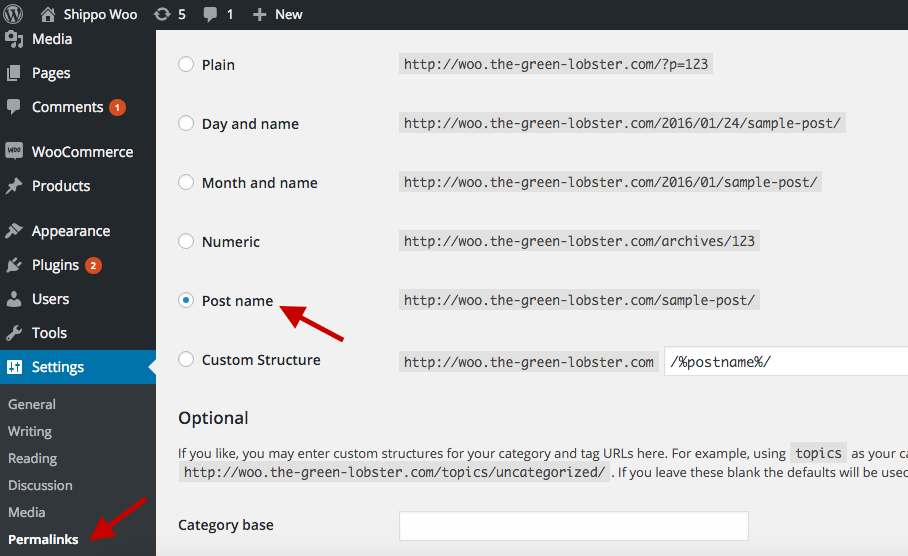
Check your permalinks
Verify your permalinks are set up correctly in WordPress. Go to your WordPress settings, click Permalinks, and make sure it's set to “Post Name.” Shippo only works when permalinks are set to “Post Name.”